World Tree
The world tree is the World panel, found alongside the Components Tree on the upper-left side of the application. This tree outlines every element making up the current cell, and displays the structure of the cell through a series of joints  and links
  , the 2 main elements that make up the kinematic structure of every workcell and preset you create with Cell Editor. Links can also contain bodies, which give the workcell its visual and collision geometry, and the tree also contains groups, group states and other cell elements.
More information on these elements can be found in the Cell Elements reference page.
World Tree Manipulation
The world tree consists of branches of joints and links originating out from a single base link.
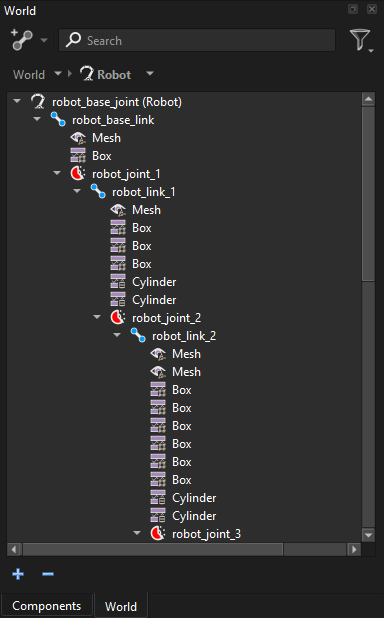
World Tree of an Example Cell
Selecting an element in the world tree selects it in the 3D viewer and shows its properties in the Properties panel. Multiple elements can be selected by holding Ctrl or Shift while clicking. Elements can be renamed by double-clicking their name; each element in the workcell must have a unique name.
Elements in the world tree can be rearranged by selecting target elements, then dragging and dropping onto the desired location.
Selected elements can also be cut, copied and pasted to different locations in the world tree. These options can be selected by right-clicking and choosing the desired option from the context menu.
Scope
When a component is selected in the Components Tree, the world tree is scoped to only show the elements that make up that component. The current scope is shown at the top of the world tree, for example World > Robot.
Clicking World at the top of the world tree shows every element in the workcell. The arrow next to each item can also be used to switch directly to a different component.
Add
The Add button at the top of the world tree adds a new element to the element currently selected in the tree. Clicking the button performs the most likely add action for the current selection, such as the last element added, while the arrow next to it opens a menu of all elements which can be added:
 Add a Link
 Add a Joint
 Add a Body
 Add a Group
 Add a Group State
 Add Joint Mimic
 Add a Cell Calibration
 Add a Calibration Measurement
Elements can only be added where they are valid, for example a joint can only be added to a link. See Creation Tools for more detail on each action.
Filter 
Located in the top-right of the world tree, the filter tool allows for adjusting which elements are visible in the world tree. This only affects the visibility of the elements in the tree, and doesn’t remove them from the workcell or hide them in the 3D viewer.
Elements hidden in the world tree will still be manipulated or repositioned should a parent element be moved, cut or deleted.
The filter menu contains a check-box for each type of element, grouped into:
Links
Bodies: Visual and Collision
Joints: Fixed, Mimics, Revolute and Prismatic
Groups: Component Groups, States and Groups
Elements with their check-box enabled will be visible in the tree. To hide a type of element, simply uncheck the associated check-box. To reset the filter, click the Reset button located in the bottom of the menu.
Additional Options/Tools
Search: A search bar is located at the top of the world tree. Typing in this search bar will return a drop-down list of all elements matching the search criteria. To navigate to one of the results of the search bar, simply click the desired element from the drop-down list, and the world tree will navigate to its location and select the element.
Expand Selected: The  button found under the world tree expands the branches of the currently selected elements until all child elements are visible in the world tree.
Collapse Selected: The  button under the world tree collapses the branches of the currently selected elements until all child elements are collapsed under their selected parent.