Managing Workcells
Workcells created through Cell Editor are saved as a .vbmodel file, which is a compressed file containing all your workcell’s data. When opening Cell Editor, you will be presented with a screen where you can create a new workcell, or open one you’ve recently been working on. You can also select “Open from Library” to open a workcell from your available workcells (including online and exmaple workcells you have not yet downloaded).
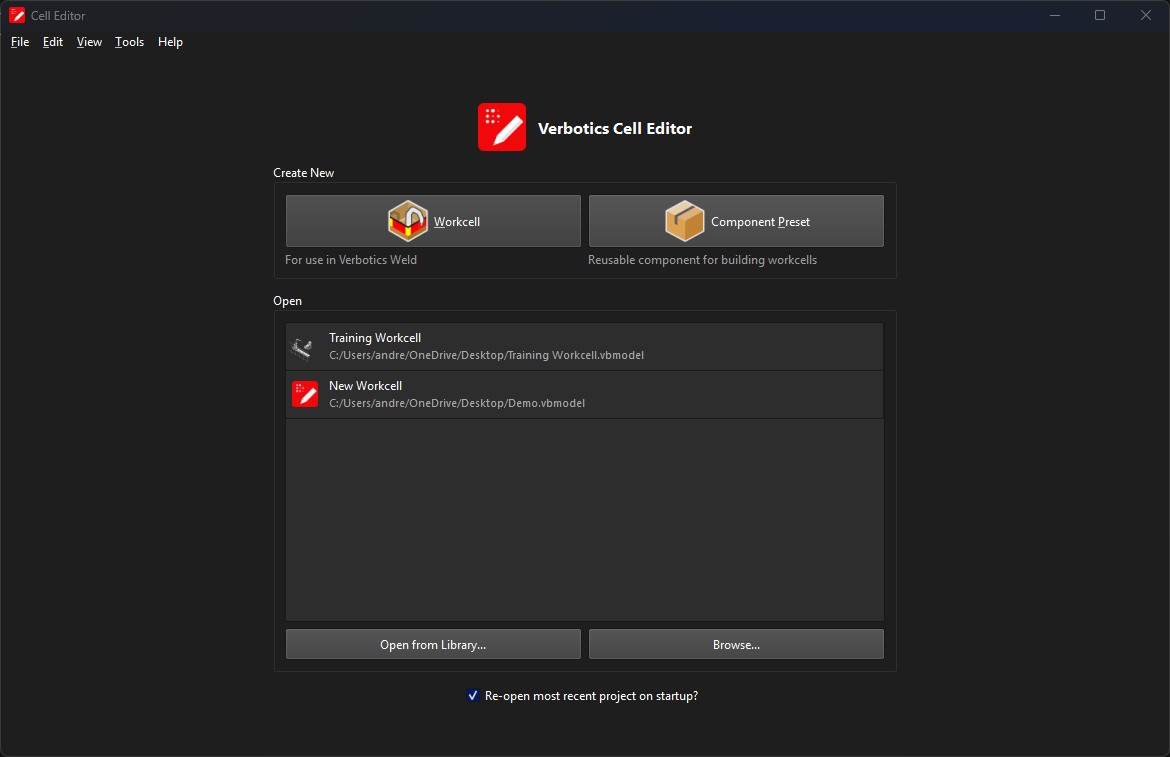
Cell Editor start page
You can also access these actions using the File menu in the top left of the application.
Using and Publishing Workcells
You can also a workcell as a .vbmodel using the standard application save action, and then share it with others or import it into Verbotics Weld. If you want to import the workcell into Verbotics weld in a single step, click the “Send to Weld” button in the ribbon, which will automatically open Weld with a project using your workcell. As you edit the workcell, you can continually use this to send updates to test in Weld.
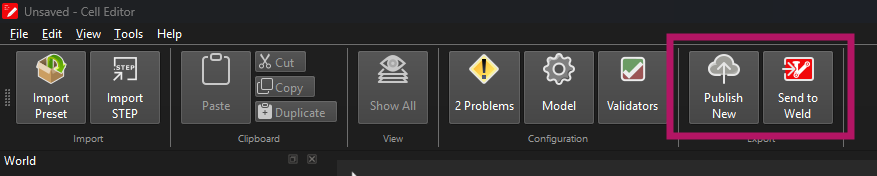
Publish and Send to Weld buttons in the ribbon
In addition to the standard save actions, if you have the appropriate license entitlement, you will also have access to a “Publish” button on the ribbon. When clicked, this will save the workcell to a temporary file and open your browser to upload the workcell to the accounts portal so other users can access it in their copy of Verbotics Weld and Cell Editor.
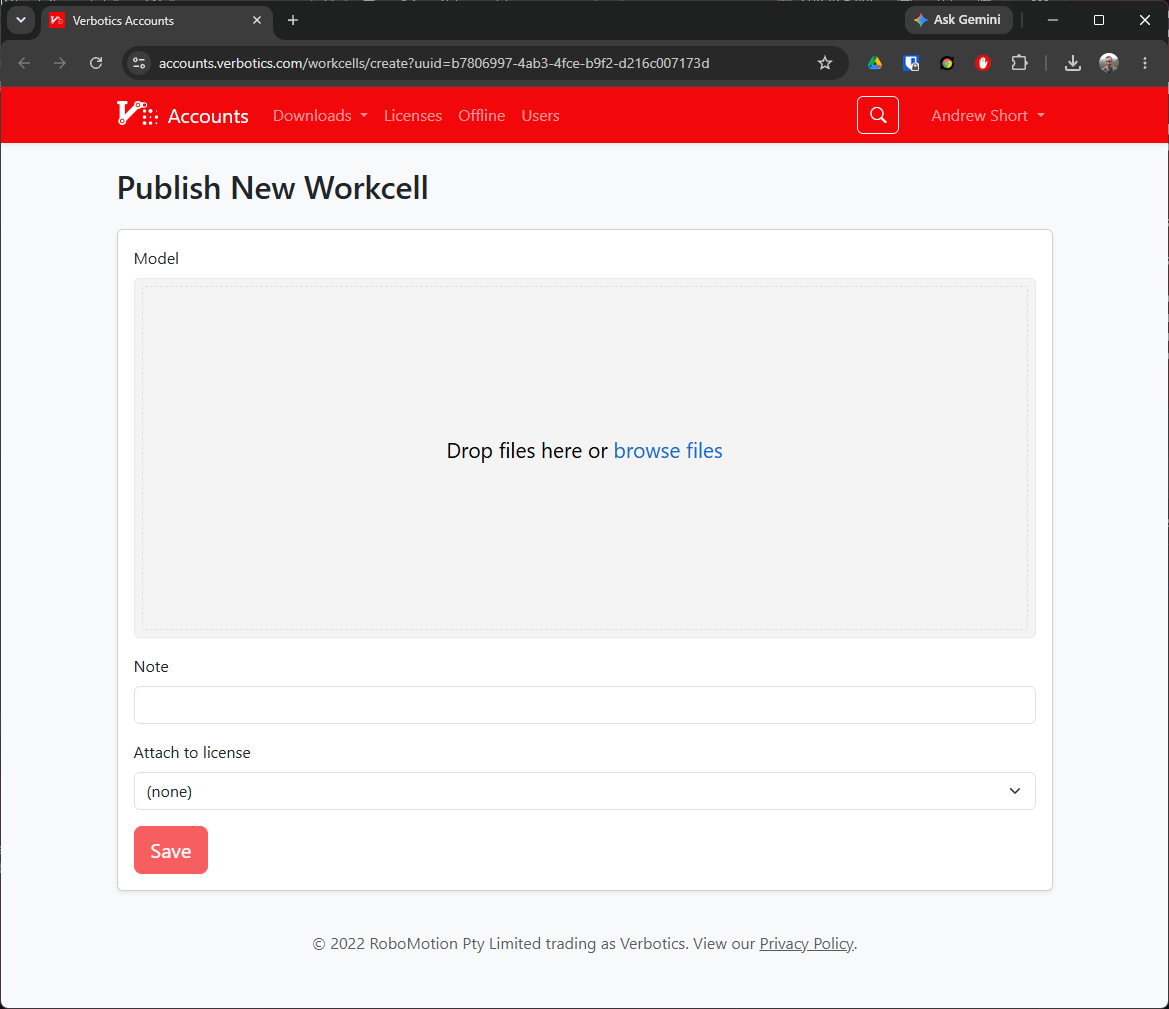
Publishing a workcell in the accounts portal