Preferences
Preferences are application-wide options and settings that are persistent across different workcells. They can be accessed through Edit > Preferences..., and are split across several pages which can be selected from the list on the left of the dialog.
The Restore Defaults button in the bottom left of the dialog restores every preference to its default value.
General
The General page includes options and settings that affect most of Cell Editor’s standard functions.
General:
Distance unit: The unit used to display all distance values in Cell Editor. Can be metres, millimetres or inches. By default, this is millimetres.
Angle unit: The unit used to display all angle values in Cell Editor. Can be radians or degrees. By default, this is degrees.
Author name: The default author name applied to workcells and presets created in Cell Editor, in the form
Name <email>.Mesh format: The format meshes are saved and exported in. By default, this is GL Transmission Format (
.glb).Automatically check for updates?: If enabled, Cell Editor will check for new releases on start-up, and alert you if an update is available.
Autosave every: If enabled, Cell Editor autosaves the currently open workcell. The period of time in minutes between autosaves is specified to the right of this option.
Search Paths:
Verbotics Weld path: The location of the Verbotics Weld application (
weld.exe). This is used by the Send to Weld button in the ribbon, and is set automatically when Verbotics Weld is run.Preset library directory: The directory downloaded and local presets are stored in. By default, this is
C:/Users/<user>/AppData/Roaming/Verbotics/Cell Editor/presets. Changing this directory requires Cell Editor to be restarted.
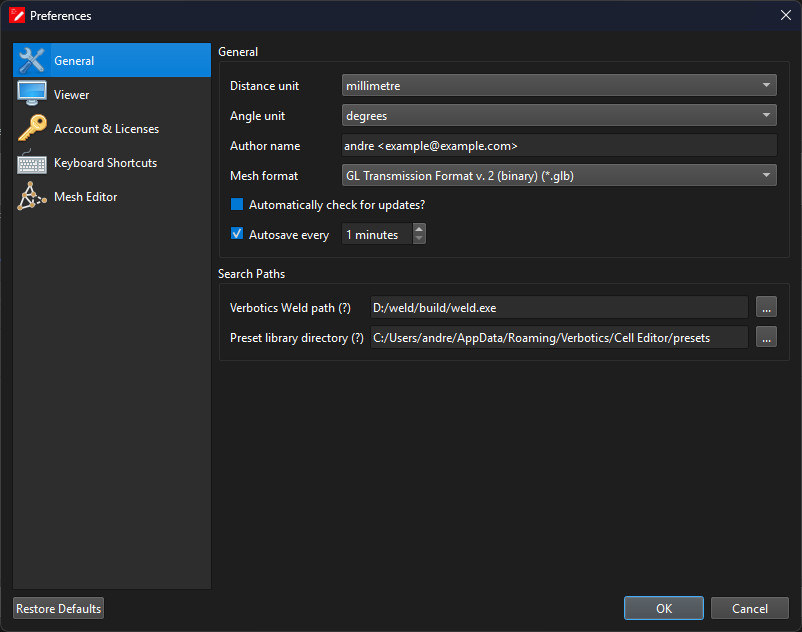
General Preferences
Viewer
The Viewer page contains options for customising the appearance of the 3D viewer:
Background colour: Use the system colour for the background, or select Pick colour to choose a colour manually.
Background type: Set the background to either be a gradient, or a solid colour.
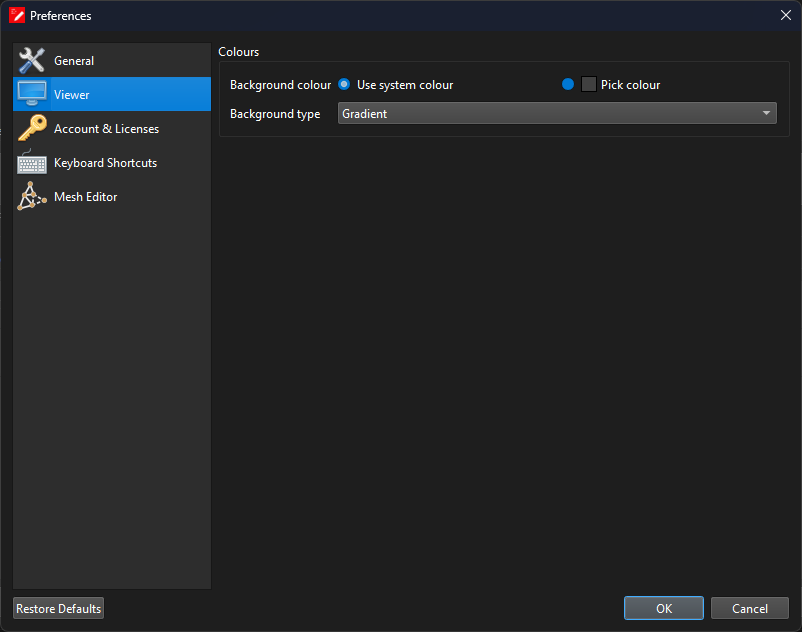
Viewer Preferences
Account & Licenses
The Account & Licenses page shows the Verbotics account you are logged in as, and the licenses available to your account. From this page you can:
Log in to your Verbotics account. If your account has offline login enabled, you can also log in without an internet connection by generating a login request and importing the login response. For more details, visit https://accounts.verbotics.com/offline on an internet connected device.
Manage your account in the accounts portal, refresh your account details, or log out.
View each license’s status and details, such as its expiry date, seats, entitlements and workcells, and activate or deactivate it on the current machine.
Keyboard Shortcuts
The Keyboard Shortcuts page consists of a table of different tools and functions sorted into categories relating to their purpose. The Filter Shortcuts… box at the top of the page can be used to search for a specific shortcut.
Each row in this table contains a Name label, a Shortcut textbox and a button to Clear the shortcut.
Clicking in the shortcut textbox will trigger a recording mode, where the combination of keys you enter next will be recorded as the shortcut. The Restore Defaults button at the bottom of the page restores all keyboard shortcuts to their defaults.
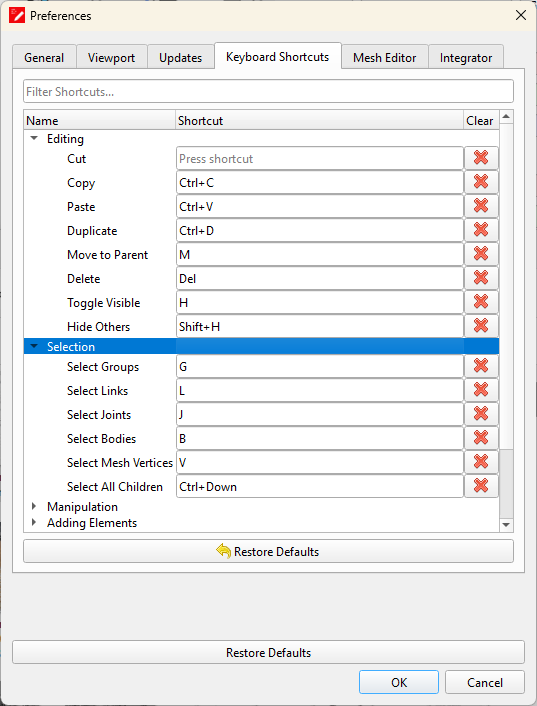
Keyboard Shortcuts
Mesh Editor
The Mesh Editor page covers options for linking a mesh editing application to Cell Editor, such as Blender. Cell Editor is configured to use Blender by default, and will automatically find the latest version installed under C:/Program Files/Blender Foundation. As such, if you have Blender installed, this feature should work without any adjustments to these settings.
If you are using a different application, linking an application will require the following:
Application: The location of the executable file for your mesh editing application.
Launch Arguments: Arguments to be passed to the mesh editing application when launched. There are several variables that can be used:
%APP% accesses the application executable.
%DIR% accesses the working directory.
%CE_DIR% accesses the Cell Editor directory.
Files to watch: The files that Cell Editor should check for changes. Multiple files can be entered, where each file is separated by a semicolon (;).
Pre-launch command: The command that is run before the mesh editing application is launched.
Post-save command: The command that is executed when the file opened by the mesh editor is saved.
Pre-launch and post-save commands are often scripts used to convert the Cell Editor format of the mesh (by default a “.glb” and “.json” combination) to and from the format used by the editing software.
Note
Mesh files to edit are placed under %DIR%/input.
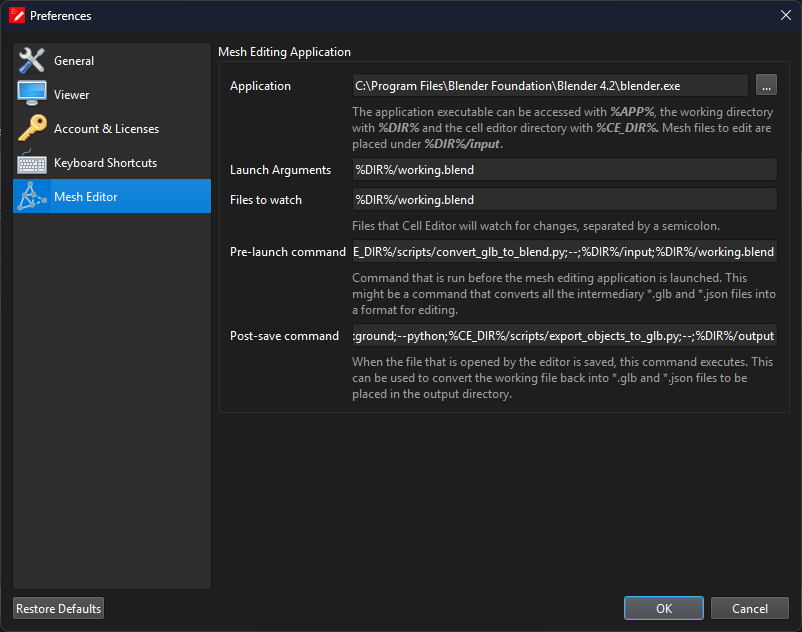
Mesh Editor Preferences