Component Configuration
Each component in a workcell, such as a robot, tool or workstation, has a configuration which describes how the component should be used in Verbotics Weld. This configuration forms part of the cell’s model configuration.
The configuration of a component can be edited from the Component Configuration panel. To open this panel, select a component in the Components Tree, then click the Edit Configuration button in the Properties panel. The configuration options shown depend on the type of the selected component.
Component Configurations can also be edited from the model configuration dialog in a single screen, which is opened using the Model button in the ribbon.
Robot Configuration
A robot configuration is split into 4 tabs: General, Configurations, Singularities and Generator.
General
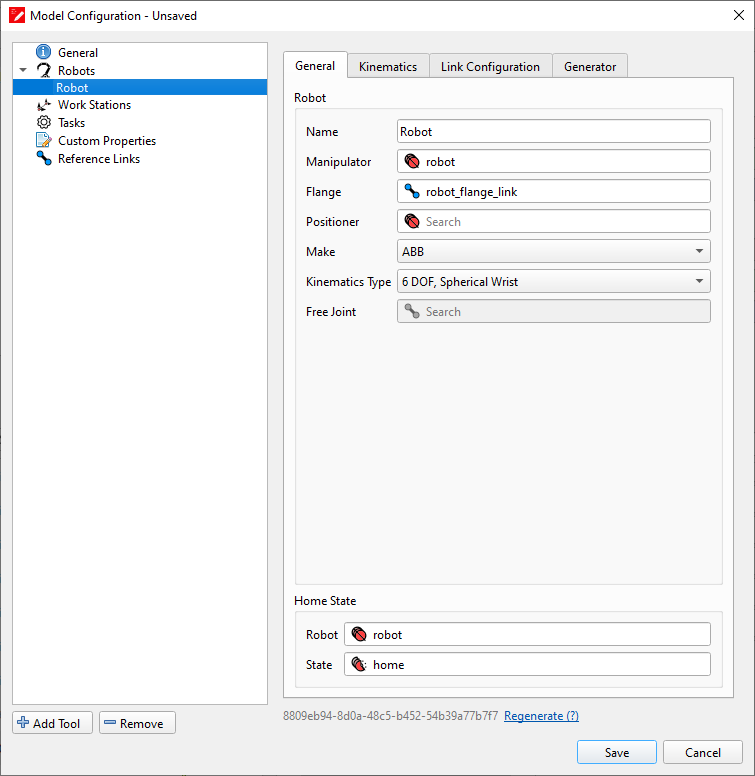
Robot General Tab
The General tab defines the robot and its kinematics.
In the Robot section:
Name (Text): Display name given to identify the robot in the cell.
Make (Drop-down): The manufacturer/brand of the robot. Controls some options for the robot and changes the default generator used when outputting code from Weld.
Home (Group and Group State): A group and a state of that group representing the home position of the robot.
In the Kinematics section:
Flange (Link): The flange link of the robot.
Group (Group): A joint group containing the active joints of the robot arm.
Type (Drop-down): The kinematic solver to use when planning motion paths.
Free joint (Joint): The free joint for 7-DOF robot arms.
In the Base Moved By section:
Robot positioner (Robot Positioner): The robot positioner, such as a track or gantry, that the robot is mounted on. See Robot Positioner Configuration.
Another robot (Robot): Used if the robot is mounted on the end of another robot.
Configurations
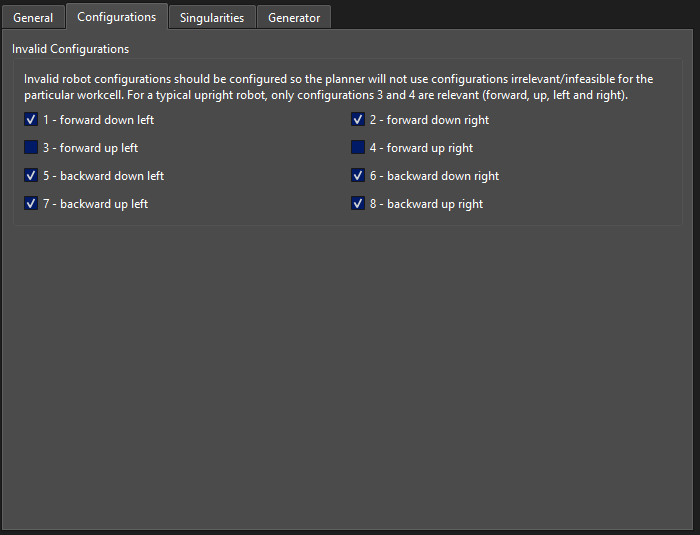
Robot Configurations Tab
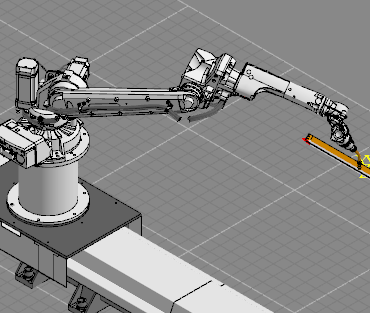
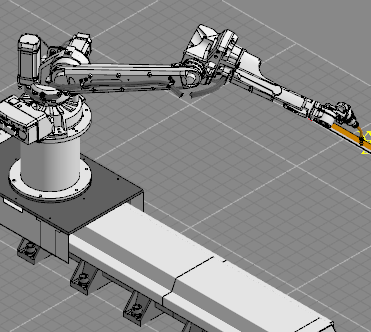
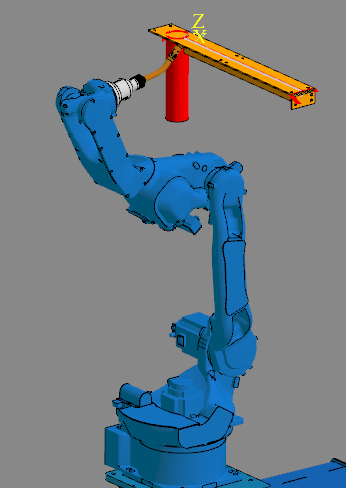
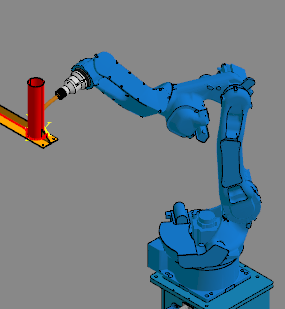
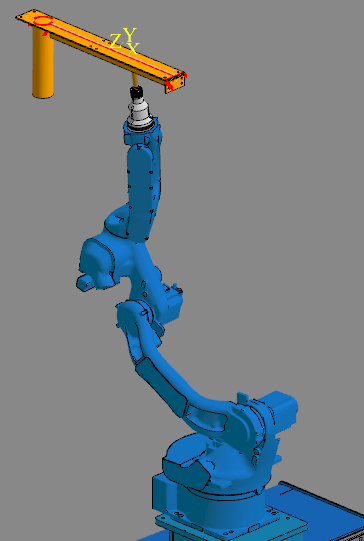
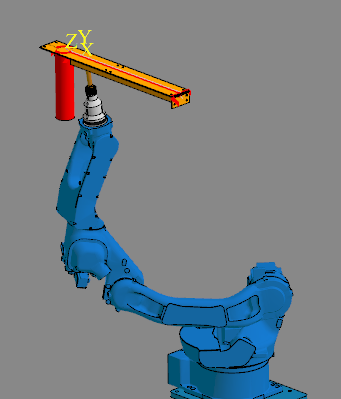
There are 8 configurations a robot can use when attempting to plan a toolpath. Setting a robot configuration to invalid will prevent the robot from generating motion plans in that configuration.
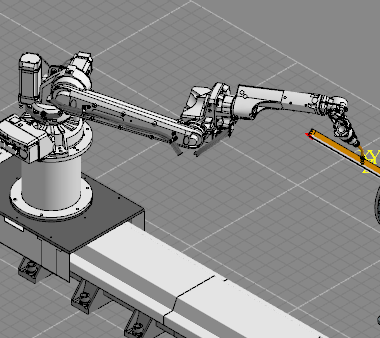
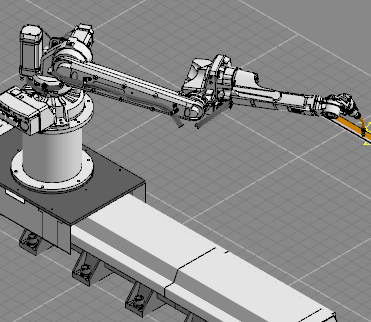
Invalid robot configurations should be set so the planner will not use configurations which are irrelevant or infeasible for the particular workcell. For a typical floor-mounted robot, only configurations 3 and 4 are relevant (forward, up, left and right).
The 8 configurations are shown in the table below:
|
|
|
|
|
|
|
|
|
|
|
|
|
|
|
|
Singularities
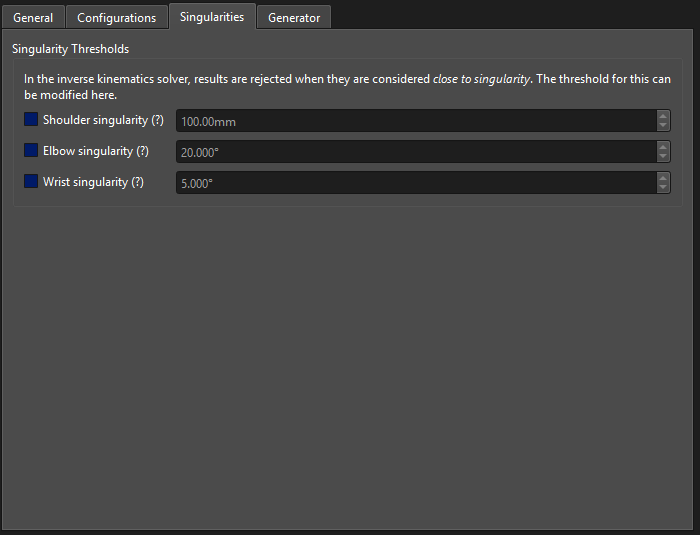
Robot Singularities Tab
In the inverse kinematics solver, results are rejected when they are considered close to a singularity. The Singularities tab allows these thresholds to be adjusted. Enable the checkbox next to a threshold to set a custom value, otherwise the default for the selected kinematics type is used:
Shoulder singularity: Minimum distance of the wrist to Joint 1 in its projection onto Joint 1.
Elbow singularity: Minimum angle allowed between Joint 2 and Joint 3 before the solution is considered to be in singularity.
Wrist singularity: Minimum angle of Joint 5 to prevent a wrist singularity.
Generator
The Generator tab contains a JSON object which is provided to the code generator. The contents are generator specific. For example, this tab would be used to add pulse count values for a Yaskawa robot for use when generating code for planned welds.
Tool Configuration
A tool configuration has tabs for General, Sensing, Planning and Generator options.
General
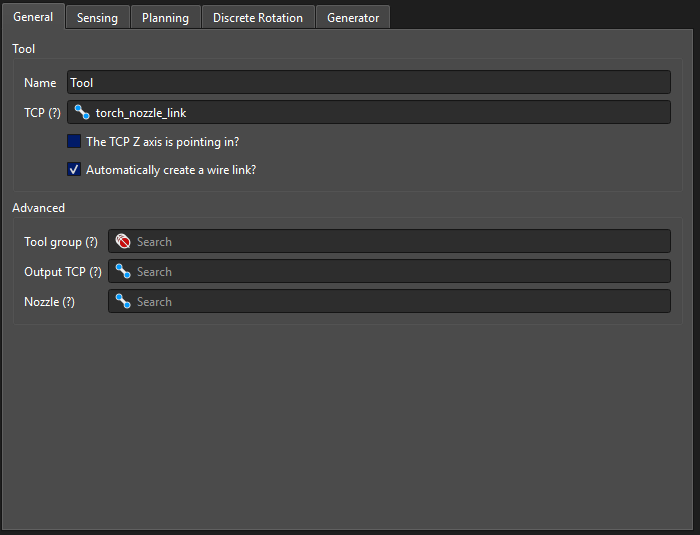
Tool General Tab
The General tab contains the general metadata of the tool, and inputs for essential links.
In the Tool section:
Name (Text): The name of the tool, used to identify the tool in Weld.
TCP (Link): The TCP of the tool. This must be configured with the Z axis pointing along the tool, positioned where the end of wire is expected to sit. Nozzle collisions must be symmetric around the Z axis. Required for the tool to function.
The TCP Z axis is pointing in? (Check-box): If enabled, Weld will expect the Z axis of the TCP to be pointing in towards the torch, instead of outwards along the wire.
Automatically create a wire link? (Check-box): If enabled, automatically creates a link to represent the wire protruding from the tool.
Note
The TCP Z axis is pointing in option is deprecated and will be removed in future versions of Verbotics Weld. Consider using the Output TCP option instead, with a new link pointing in the correct direction.
In the Advanced section:
Tool group (Group): Optional. For multi-tool workcells, items in this group will only be shown or enabled when the tool is being used.
Output TCP (Link): Optional. A TCP to use instead of the default TCP when creating positions to output in robot code, for example if the robot uses a different convention for code generation.
Nozzle (Link): Optional. If the nozzle collision is not part of the TCP link, the link containing the nozzle collision.
Sensing
The Sensing tab contains all options and configuration data relating to the sensing functionality of the tool.
Wire touch sense available? (Check-box): Enables the tool to use wire touch sensing in Verbotics Weld. Requires no additional links or values to be specified.
Optical tracking available? (Check-box): Enables the tool to use optical tracking in Verbotics Weld.
Nozzle touch sense available? (Check-box): Enables the tool to use nozzle touch sensing, and unlocks the following parameters:
Radius (Value): The radius of the bottom of the nozzle where the touch is performed. Generally similar to the collision radius, and around 8-11mm, but check the specifications of your physical tools to verify this.
CTWD (Value): The contact tip to work distance to apply when sensing. This is typically negative, corresponding to a retracted wire.
Tip distance (Value): The distance between the TCP and the end of the nozzle.
Laser sense available? (Check-box): Enables the tool to use laser sensing. Both 1D and 2D laser sensing are available to use, and each requires several additional links and values in order to function correctly.
Laser sensing requires:
Laser TCP (Link): The TCP of the laser. For 1D lasers, the Z axis must point in or out along the laser direction. For 2D lasers, the positive Z axis must point outwards, and the X axis must be parallel to a line between the laser and emitter.
Laser occlusion (Link): A link used to model the sensor occlusion. Typically modelled as two cones set 2-3mm back from the laser TCP.
Sensing range (Value): The range where the sensor is able to take readings. This is a set distance from the laser TCP back along the laser.
Laser distance (Value): The distance from the laser emitter to the Laser TCP.
2D laser sensing additionally requires:
2D Laser sense available? (Check-box): Enables the tool to use 2D laser sensing and unlocks 2D laser sensing parameters.
Laser X offset (Value): The distance between the laser and camera along the tool’s X axis.
Field of view (Value): The field of view of the sensor, in degrees.
Planning
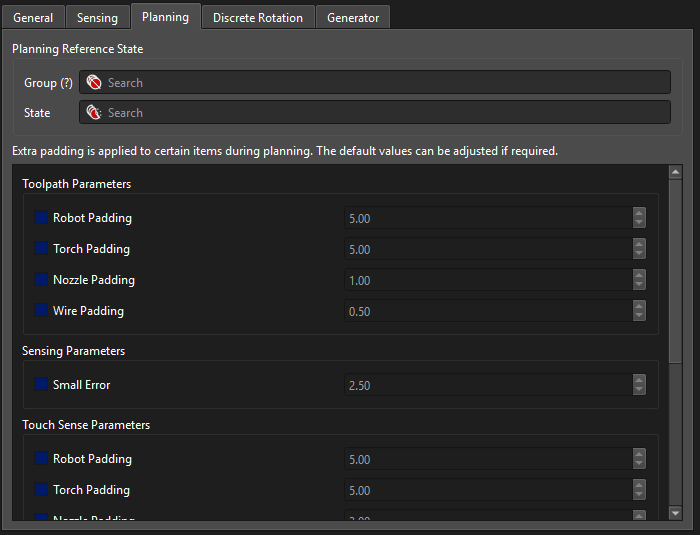
Tool Planning Tab
The Planning Reference State section allows an optional group state to be used as a reference when planning with this tool:
Group (Group): The group the reference state belongs to.
State (Group State): The reference state.
Leave either field empty for no reference state, in which case the home state will be used.
Extra padding is applied to certain items during planning. Each value has a checkbox to enable applying a custom value, otherwise the default value is used. The following parameters are available to adjust:
Toolpath Parameters:
Robot Padding (Default: 5.00)
Torch Padding (Default: 5.00)
Nozzle Padding (Default: 1.00)
Wire Padding (Default: 0.50)
Sensing Parameters:
Small Error (Default: 2.50)
Touch Sense Parameters:
Robot Padding (Default: 5.00)
Torch Padding (Default: 5.00)
Nozzle Padding (Default: 3.00)
Wire Padding (Default: 0.50)
Laser 2D Sense Parameters:
Robot Padding (Default: 5.00)
Torch Padding (Default: 10.00)
Motion Parameters:
Minimum Padding (Default: 20.00)
Maximum Padding (Default: 100.00)
Generator
The Generator tab contains a JSON object which is provided to the code generator. The contents are generator specific. If the JSON is not valid, changes will not be saved.
Robot Positioner Configuration
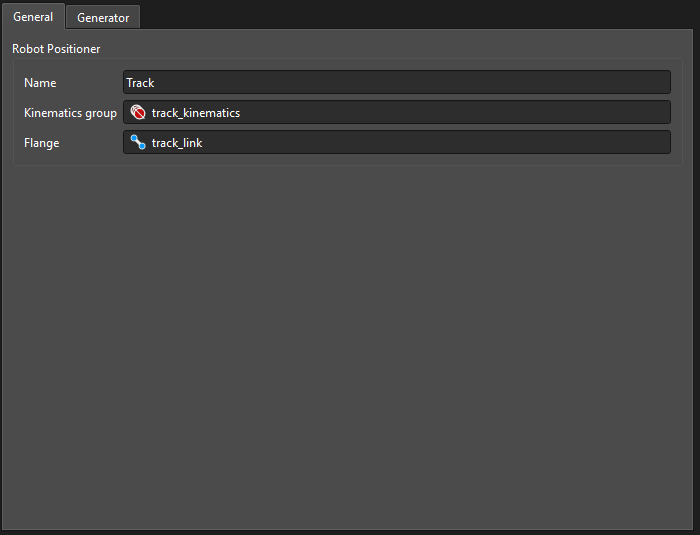
Robot Positioner General Tab
A robot positioner is a positioner which moves a robot, such as a track or gantry. Its configuration has 2 tabs, General and Generator.
The General tab contains:
Name (Text): The name of the robot positioner.
Kinematics group (Group): A joint group containing the active joints of the robot positioner.
Flange (Link): The default link the robot is mounted on when one is dragged onto this in Cell Editor.
To use a robot positioner, select it as the Robot positioner in the configuration of the robot mounted on it.
The Generator tab contains a JSON object which is provided to the code generator. The contents are generator specific.
Workstation Configuration
The workstation configuration is split into 2 tabs, General and Generator.
General
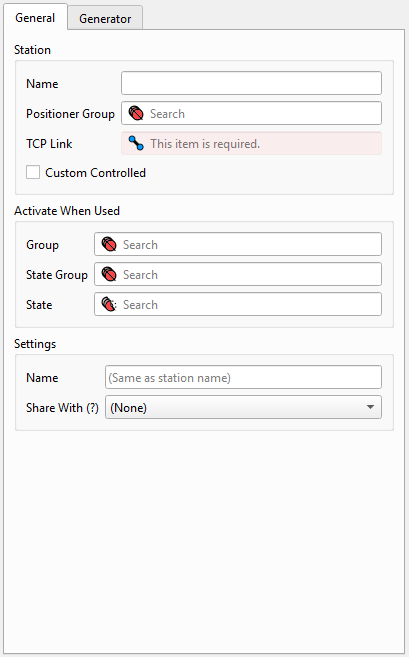
Workstation General Tab
The General tab has options for metadata about the workstation, as well as several sections for identifying the elements representing the workstation and its functionality.
In the Station section:
Name (Text): The name of the station, used to refer to the workstation in Weld.
Workpiece link (Link): The link of the workstation where parts imported into Weld are to be placed. This link is Required for the station to be used in Weld.
The Workpiece Moved By section describes what moves the workpiece, if anything:
Positioner is custom controlled? (Check-box): Whether the positioner is custom controlled, for example by a PLC. If this is checked, synchronised motions will not be planned and a custom routine will be called to move the positioner.
Kinematics group (Group): Optional. A joint group containing the active joints of the station. This should not be set for stations which do not move, such as tables.
A robot (Robot): Used if a robot arm is used as the station positioner.
The Activate When Used section contains options for enabling items and applying states in the cell only when the current station is in use.
Group (Group): Items in this group will only be shown or enabled when the station is in use, for example to block out another station’s working area.
State (Group and Group State): This state will be applied when the station is in use, for example to raise or lower a fence or guard.
The Settings section contains options for specifying the settings to be used with the station, and if these settings should be shared with other stations:
Name (Text): The name of the workpiece positioner setting in Weld to be used with this workstation. If left empty, the station name is used.
Share with (Workstation): Another station which uses the same workpiece positioner setting name. This is useful if you have a workcell with two equivalent rotators and wish to use the same settings in Verbotics Welda cross both.
Generator
The Generator tab contains a JSON object which is provided to the code generator. The contents are generator specific.