Components Tree
The components tree is the Components panel found on the upper-left side of the application. While the World Tree shows every individual link, joint and body in a workcell, the components tree gives a higher-level view of the workcell, listing the pieces of equipment that make it up, such as robots, positioners, tools and work stations.
Each component is made up of a group of elements in the world tree, along with configuration describing how the component should be used in Verbotics Weld.
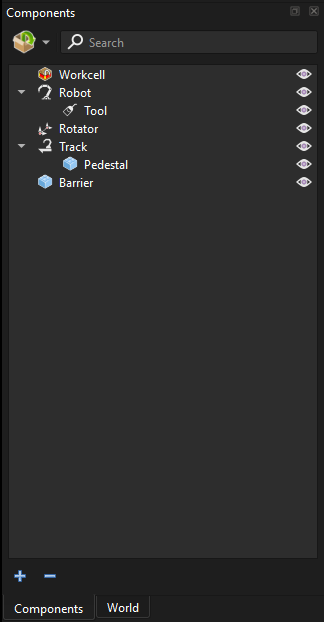
Components Tree of an Example Cell
Component Types
Each component in the tree is shown with an icon representing its type:
 Robot Arm: A robot manipulator.
 Positioner: A positioner used to move a workpiece or another component.
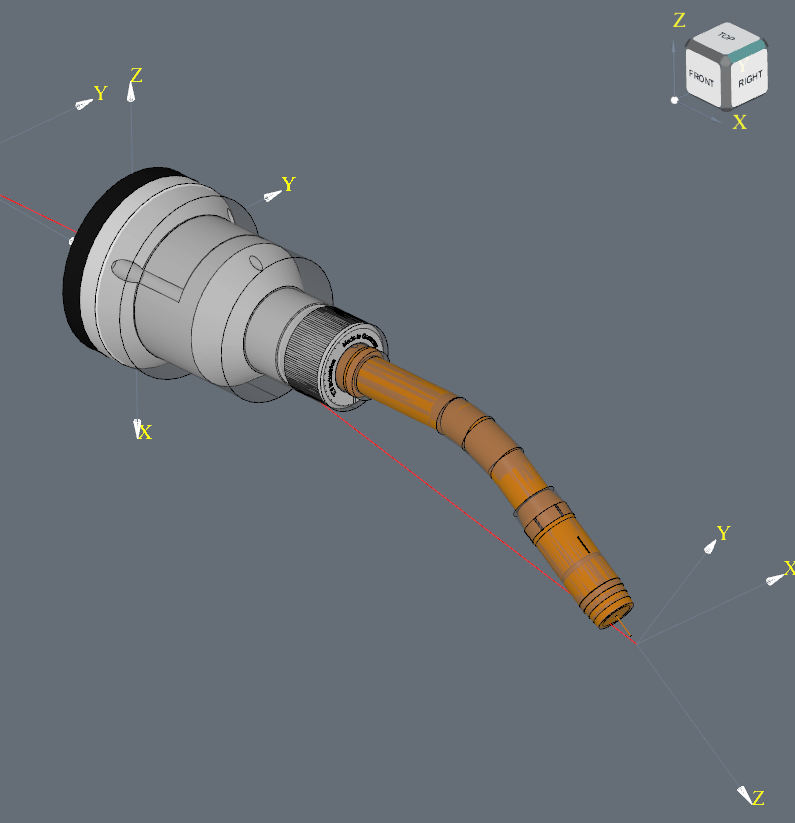 Tool: A tool attached to a robot, such as a welding torch.
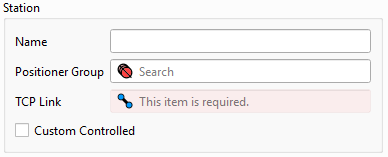 Station: A work station in the workcell.
 Vision Sensor: A camera or other vision sensor.
 Ancillary: Any other equipment in the workcell, such as barriers, fences or pedestals.
The  Workcell item at the top of the tree represents the workcell itself, and contains any elements that are not assigned to a component.
Component Hierarchy
Components can be attached to other components, and are shown nested underneath the component they are attached to. For example, a tool is attached to the robot holding it, and a pedestal may be attached to the track it is mounted on.
Components can be rearranged by selecting them, then dragging and dropping them onto the component they should be attached to. Cell Editor will only allow a component to be dropped onto a component it can be attached to.
Presets can also be dragged from the Presets panel and dropped into the components tree. Dropping a preset onto an existing component of the same type will replace that component with the preset.
Selecting Components
Selecting a component in the components tree selects it in the 3D viewer, and shows its properties in the Properties panel. Multiple components can be selected by holding Ctrl or Shift while clicking. Components can be renamed by double-clicking their name.
When a component is selected, the world tree is scoped to only show the elements that make up that component. Selecting the Workcell item scopes the world tree to elements which are not assigned to any component. The current scope is shown at the top of the World panel, and clicking World there will show every element in the workcell again.
The properties of a component include:
Name: The name of the component.
Type: The type of the component.
Attached to: The component this component is attached to.
Contents: The group of elements in the world tree that make up the component.
Edit Configuration: Opens the Component Configuration panel, used to configure how the component is used in Verbotics Weld. See Component Configuration.
A component with no contents assigned is known as a  ghost component, and is shown with a faded icon overlaid with a small ghost. Ghost components have configuration but no elements of their own in the world tree.
Because a ghost component’s configuration can still refer to elements in the world tree, ghost components are useful for creating multiple components that share the same underlying geometry, but each have a different configuration. For example, a single robot may be shared between two stations, with each station needing a different robot configuration. Rather than duplicating the robot’s geometry, the robot can be duplicated as a ghost using Duplicate as Ghost, and each copy configured for its station.
Visibility
The  button to the right of each component toggles the visibility of the component in the 3D viewer. Hidden components are shown with the
  icon. This only affects the visibility of the component, and doesn’t remove it from the workcell.
Click: Toggles the visibility of the component.
Click and drag: Drag across the visibility buttons of multiple components to show or hide them all at once.
Shift + Click: Hides every other component, so only the clicked component is visible.
Additional Options/Tools
Create: The  button at the top of the components tree adds components to the workcell, by importing a preset, creating one from a template or creating one from an existing group. See Creation Tools for more detail.
Search: A search bar is located next to the Create button. Typing in this search bar will return a drop-down list of all components matching the search criteria. Clicking one of the results selects that component in the components tree.
Expand Selected: The  button found under the components tree expands the selected components until all attached components are visible. If nothing is selected, every component is expanded.
Collapse Selected: The  button under the components tree collapses the selected components. If nothing is selected, every component is collapsed.