Custom Code
Custom code blocks can be added into your generated program via the Program area. Custom code blocks will execute the code provided before moving on to the next step in the program.
Warning
If you move the robot during your custom code block, it must return to the previous position before continuing, otherwise it may collide as it resumes program motions.
A new custom code block can be created in the Program widget by right clicking on sense or weld action you wish to either preceed/proceed the code block. A context menu will be displayed with options to either Run code before or Run code after the selected action.
Selecting either option will open the Custom Code dialog:
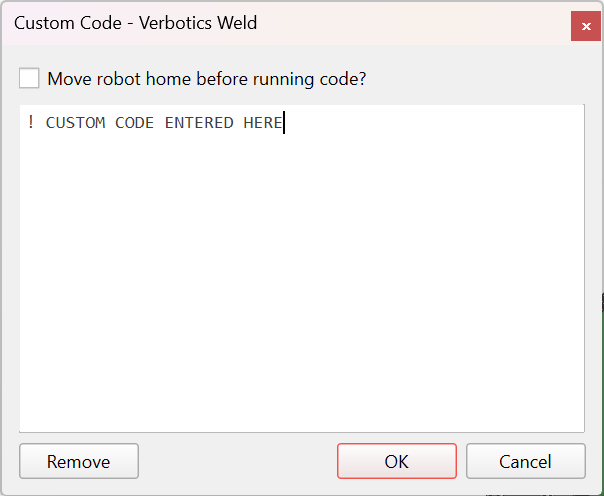
Custom Code Dialog Menu
The Custom Code dialog has the following options:
Move robot home before running code : If enabled, robot will move to home position prior to executing custom code.
Script editor : The white block in the center of the dialog is a text box for entering code in the robot’s native language. By default, the box will be empty. Click on the box to begin entering code.
Examples
Common uses of custom code can be to prompt the operator to check parts, undertake actions, or to wait for a part to cool before continuing. Below are examples which will display a message, and then pause the program before continuing.
ABB RAPID
TPWrite "Example message";
Stop;
Yaskawa Inform
MSG "Example message"
PAUSE
FANUC TP
: MESSAGE[Example message] ;
: PAUSE ;