Account Management
The Accounts Portal is where you download software and workcells, view your licenses, and manage the users in your organisation.
Companies and Roles
Every account belongs to a company, which has licenses and workcells. Companies are set up by Verbotics.
A system integrator’s company can have its end-user customers set up as sub-companies. The integrator then has access to their customers’ licenses, users and workcells, so they can support them and manage their accounts. End users can’t see the integrator’s company or their other customers.
Each user has one of two roles:
User can download software and workcells, view their company’s licenses, and activate them in Verbotics Weld.
Company Manager can also invite, add, edit and deactivate users in their company and, for integrators, their customers’ companies.
Users can also have additional permissions:
The Manage workcells permission, which allows uploading new workcells and versions for the workcells their company manages, and attaching them to licenses with the Attach Workcells entitlement.
Managing Users
Company Managers can manage users from the Users menu.
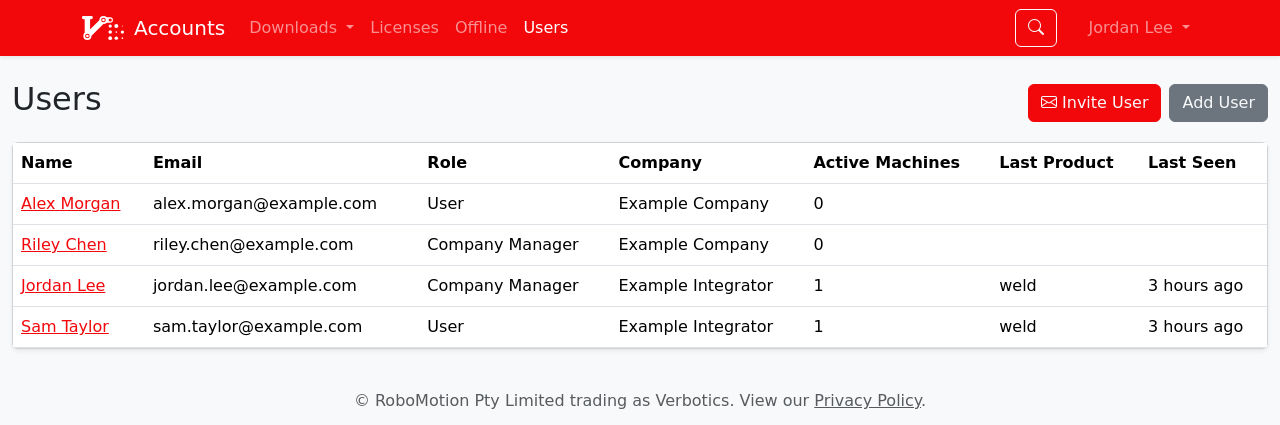
Users list
Inviting Users
Click Invite User.
Enter the person’s email, and select their company and role.
Click Send Invitation.
The person receives an email with a link to create their account, or to log in and accept if they have a trial account. Invitations expire after 2 days. Users who already belong to a company can’t be invited, so please contact us to move a user between companies.
Alternatively, click Add User to create an account directly with a password you choose.
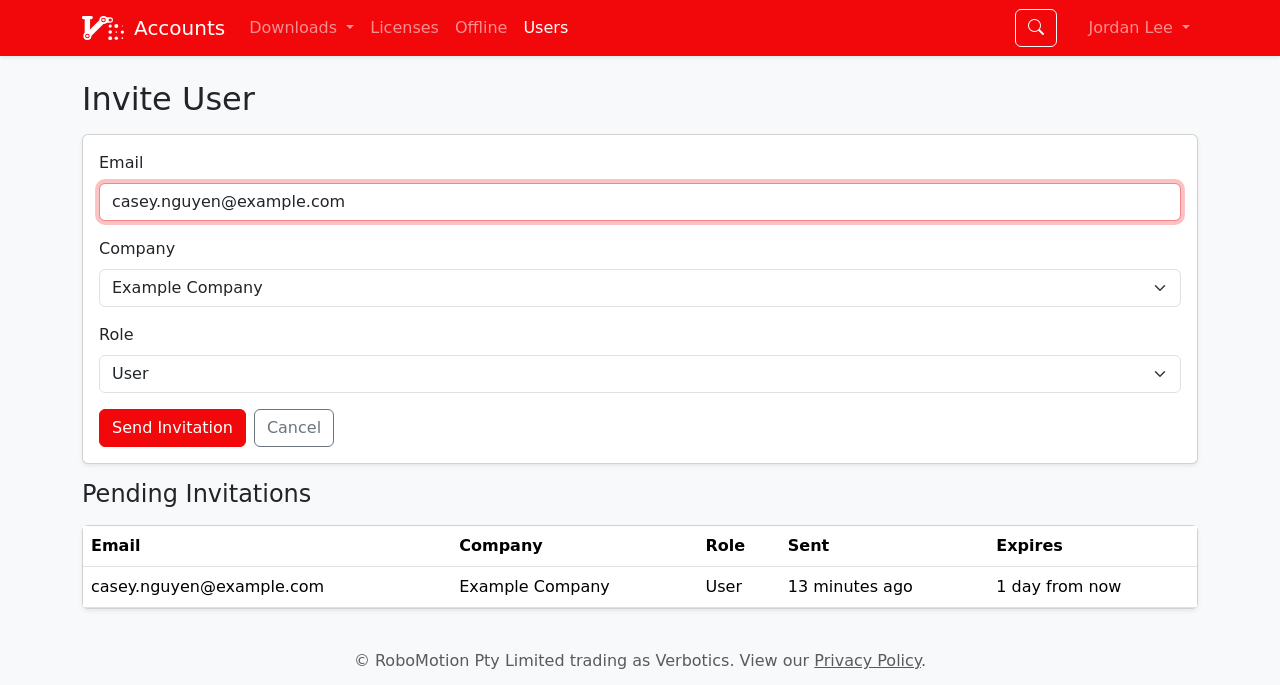
Invite User page
Editing and Deactivating Users
Click a user’s name to open their profile. From here you can change their details, company, permissions and password, and see the computers they have logged in on. Email addresses can’t be changed.
To remove access, click Deactivate and confirm. The account is disabled immediately. Contact us to reactivate an account.
Licenses
The Licenses menu lists your company’s licenses, and for integrators, their customers’ licenses. Click a license to see its expiry dates, entitlements, linked workcells, and the computers it is active on.
A license with limited seats can only be active on that many computers at once. A computer keeps its seat for a period of time automatically. To release a seat immediately, deactivate the license on that computer. If the computer is no longer available, please contact us.
Offline Login
Computers without an internet connection can log in by exchanging files through the Offline page, for licenses with offline login enabled.
In Verbotics Weld, go to
Edit > Preferences > Account & Licenses, click Login without an internet connection, then Generate Login Request….On an internet-connected computer, upload the file on the Offline page, select the licenses to activate, and click Submit.
Back in Verbotics Weld, click Import Login Response… and select the downloaded file.
An offline login remains active until the license expires. To release it early, click Log Out in Verbotics Weld and upload the generated file on the Logout tab of the Offline page.
Your Account
In Verbotics Weld, Edit > Preferences > Account & Licenses shows your account and licenses. Click Refresh after changes are made in the portal. To change your password, click your name in the top right of the portal and select Change Password.