Presets
Presets are pre-made components, such as robots, tools and workstations, that can be added directly into a workcell. A library of standard presets is made available to licensed users, and your company may also have its own private presets.
The Presets panel is used for browsing, downloading and importing presets. By default it is located at the bottom of the left pane, alongside the Properties panel.
Preset Library
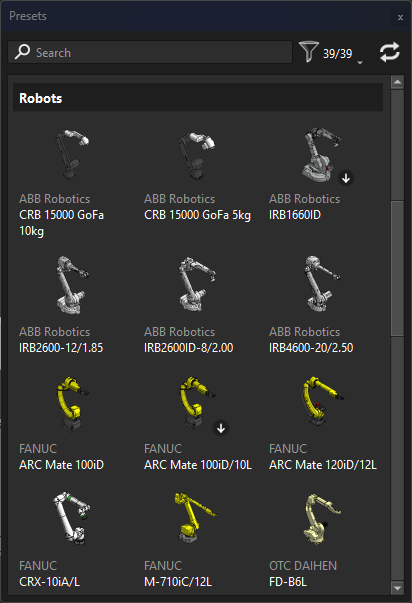
Presets Panel
The preset library lists all presets available to you, both from your local presets folder and from the presets available online through your Verbotics account. Presets are grouped by category, and sorted by manufacturer and name within each category. The categories are:
Tools
Workstations
Robots
Robot Positioners
Other
Templates
Hovering over a preset shows its name, manufacturer and version, along with whether it has been downloaded yet or has an update available.
Note
Online presets require internet access in order to be downloaded, however presets which have already been downloaded will remain available to use offline.
Adding Presets to a Workcell
Presets can be added into a workcell by dragging and dropping them into either the 3D viewer, the Components Tree or the World Tree. While dragging a preset over the 3D viewer, the possible attachment points in the workcell are shown as blue spheres. A preset can also be imported by double-clicking it.
|
|
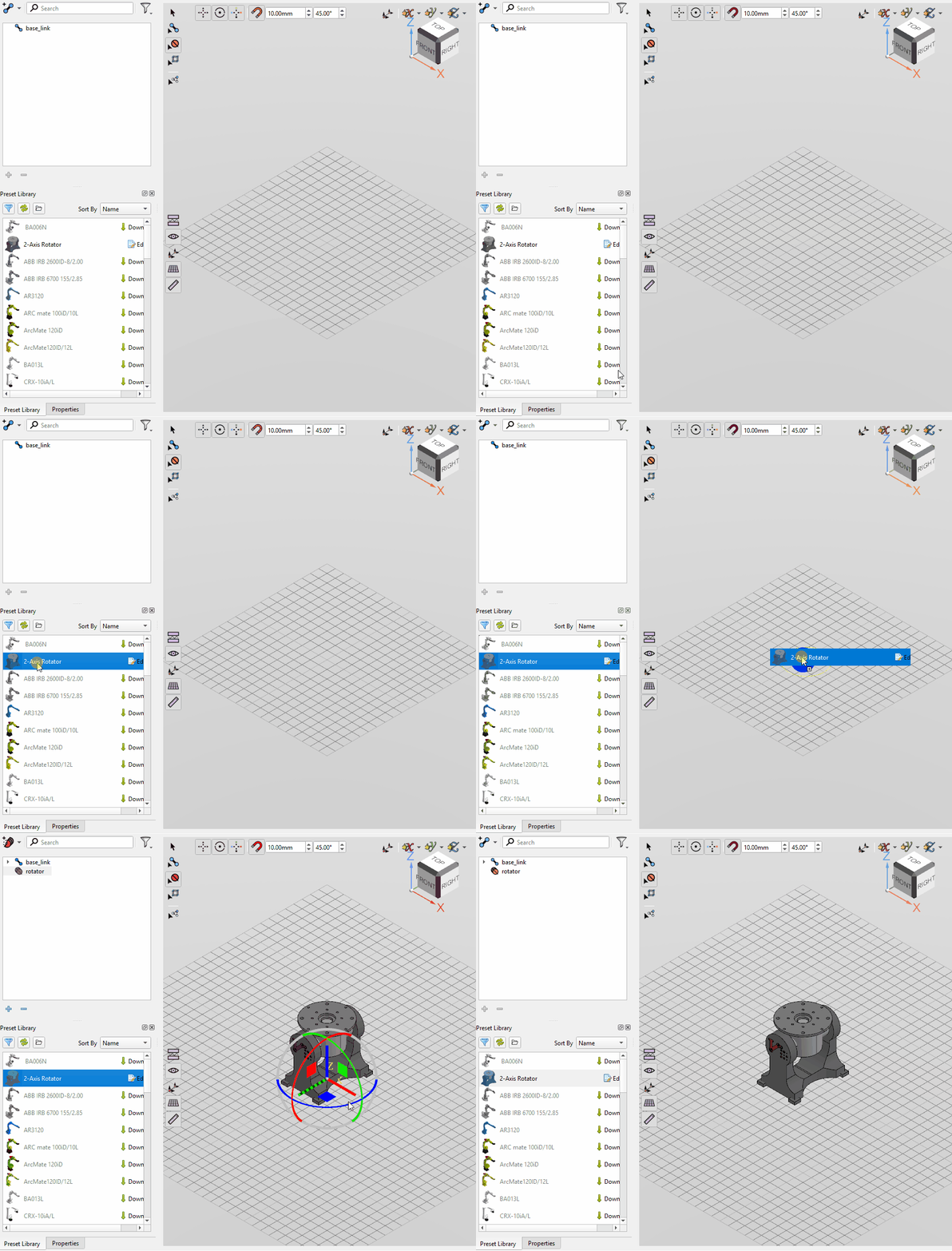
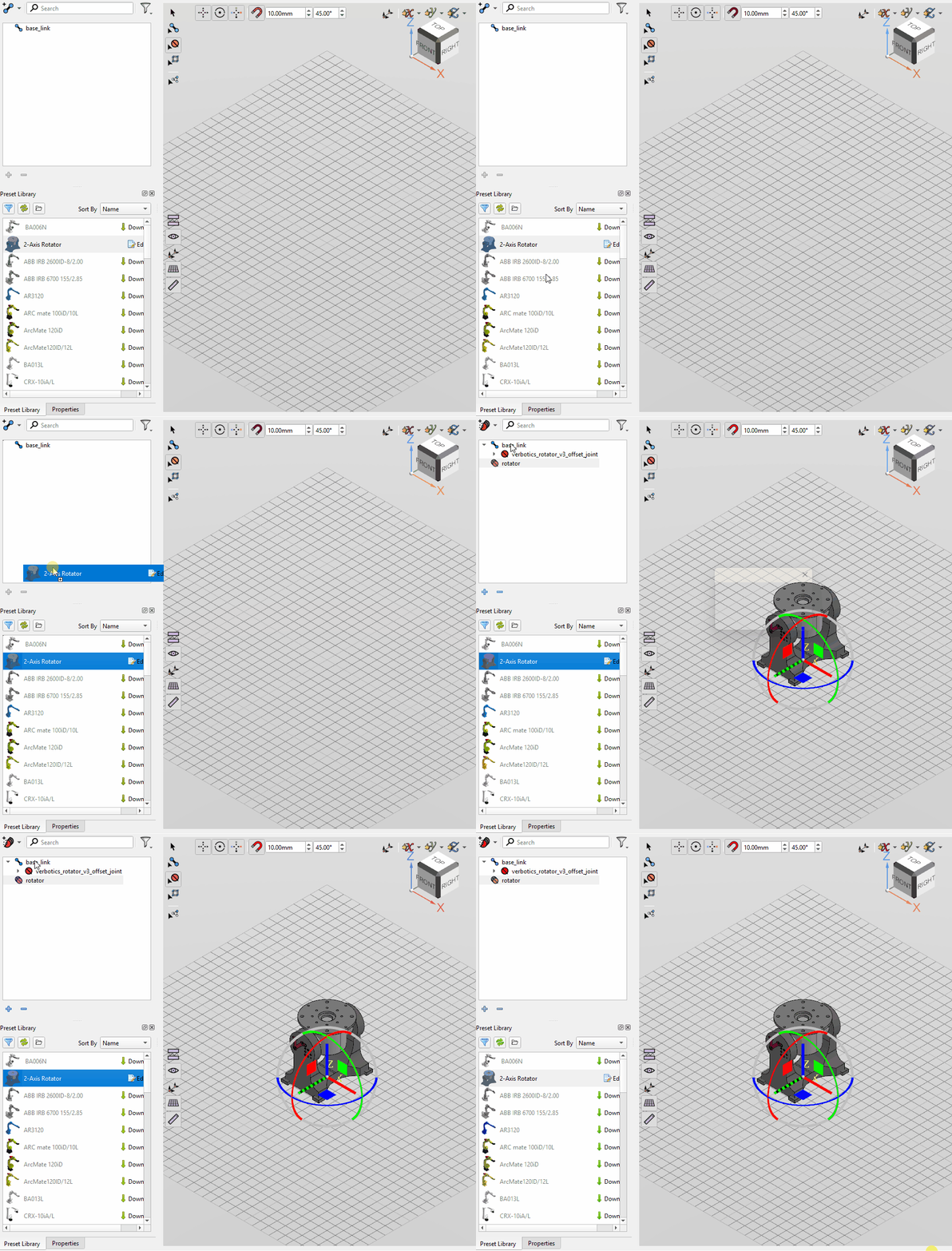
Dropping a preset onto an existing component of the same type in the Components Tree will replace that component with the preset.
Presets which have not been downloaded yet are shown with a download badge in the bottom right of their thumbnail, and will be downloaded automatically when imported. Presets with an update available are shown with an update badge in the top right of their thumbnail.
Preset Library Tools
Search
The search bar at the top of the panel filters the preset library to only show presets matching the search.
 Filter
The button opens a menu used to filter the presets shown in the library. The number of presets currently shown, and the total number of presets, are shown next to the button.
Presets can be filtered by:
Category: Show only presets of a single category, or (any) to show all categories.
Manufacturers: Show only presets from the selected manufacturers, or (all) to show presets from every manufacturer.
 Refresh
es the preset library with the server, updating it with any changes to the online presets. If the library could not be synchronised, the button shows a warning, and hovering over it shows the reason.
Note
The location of your local presets folder can be changed in the Preferences.