Model Configuration
A workcell’s model configuration sets workcell-wide properties, as well as including configuration for each relevant Component in the workcell. This can be accessed using the  Model button located in the ribbon menu.
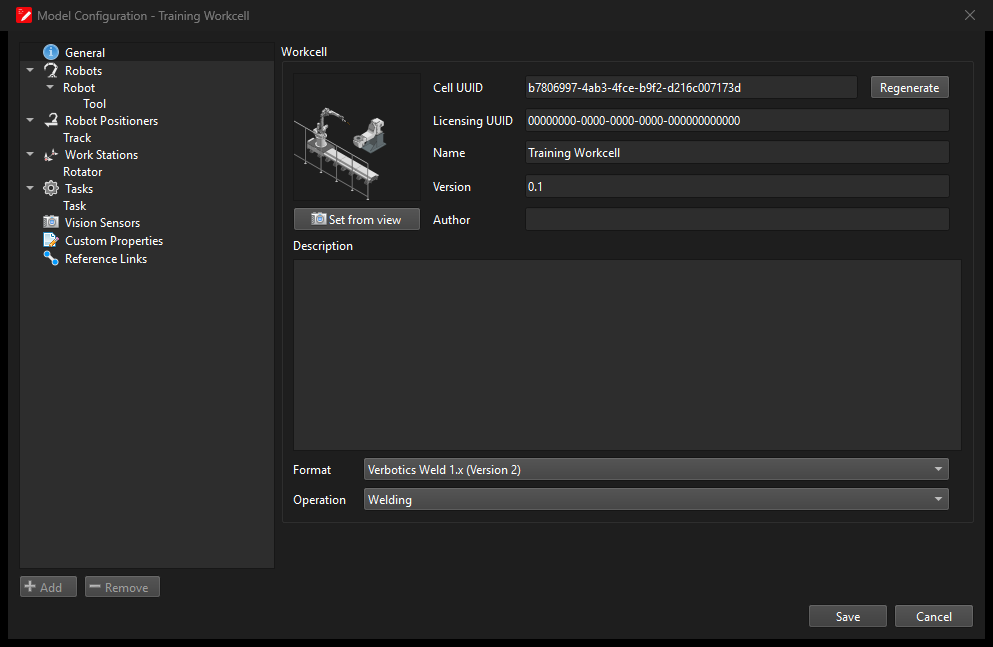
Model Menu
The menu is split into 2 sections. The left column lists the different items currently defined in the model configuration, and sorts these items into their relevant types:
General: The cell’s metadata.
Robots: Each robot, with the tools attached to it listed underneath.
Robot Positioners
Work Stations
Tasks
Vision Sensors
Custom Properties: Additional custom JSON properties to include in the model configuration.
Reference Links
Selecting the header of a given type of item will enable the Add button found at the bottom of the window. Using this button, you can add a new item of the selected type to the model configuration. Items can be removed using the Remove button.
When an item is selected on the left of the model configuration menu, its details and properties will be displayed in the section to the right.
Robots, tools, robot positioners, work stations and vision sensors make up the components of the workcell. The configuration of an individual component can also be edited directly from the Component Configuration panel. See Component Configuration for details of the options available for each type of component.
Tasks
Tasks are used to describe which active joints are controlled by which program. Additionally, they affect which code generators are invoked when planning.
A cell requires at least one task to function in Weld.
General
A task consists of the following options and references, which are shown in the General tab:
Name: The name of the task, used to reference the task in Weld.
Default Generator: The default generator to use when this task is enabled in a Weld Project. If you have a custom generator called
my_custom_generator.js, this should be set tomy_custom_generator.Robot: The robot to be active when the task is enabled in a Weld Project.
Station: The workstation to be active when the task is enabled. If a robot has been referenced in the task, this workstation is controlled and can be synchronised by that robot.
Controlled and Uncontrolled Joints: A group of joints that are controlled by the current task. This advanced option should only be set if the default behaviour (any robot or station joints are controlled by this task) does not apply.
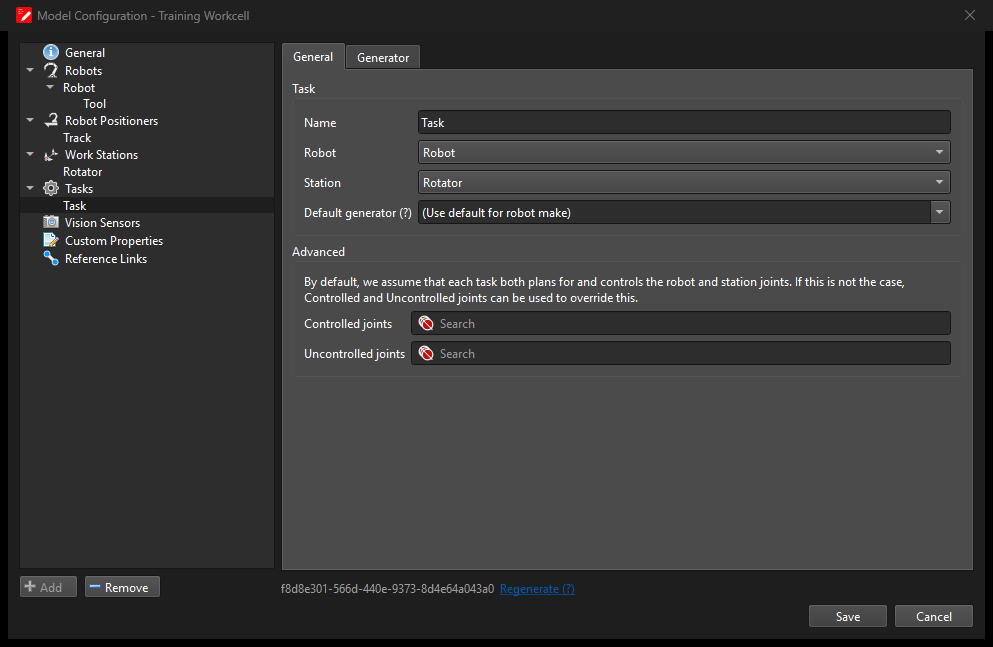
Task Configuration
Generator
The Generator tab allows you to add a custom JSON object which will be passed to the code generation. The contents of this brand and generator-specific.